1. Signing into iManage Work
2. Configuring the iManage Gmail extension
3. Filing sent or received emails
4. Using Send and File
5. Saving attachments
6. Attaching iManage documents or links
7. Opening emails in Gmail
8. Linking, editing, and unlinking labels
9. User Management
Signing into iManage Work
When you use iManage Work Email Management from Gmail, you’re prompted for authentication the first time in a session.
The following iManage Work Server authentication types are supported:
- Network/Explicit: You're prompted for a user name and password.
- SAML/AD FS: If you’re within the intranet, you aren't prompted. If you're using the Google Chrome extension from outside the network, you're prompted for a user name and password using AD FS authentication.
Based on the settings your administrator configures, you're notified to sign in again after:
- Your user session expiration, which can happen if your authentication token expires or becomes invalid.
- You close Google Chrome and access Gmail after opening the browser again.
- In the following message, select Sign in.
Sign-in notification: - On the sign-in page that opens, provide your iManage Work credentials.
Configuring the iManage Gmail extension
- Right-click the Extension Icon in top-right and select the 3 dots beside the iManage for Gmail Extension by MacroAgility and then select either of the following:
- Options
-
On the iManage Work for Gmail Extensions Settings page, in the iManage Work URL field, enter the URL of the iManage Work Server to which you want to connect.
Figure: Extension settings page - From the Extension language drop-down list, select a language for the iManage Work Email Management for Gmail extension.
- Select Save. A message is displayed about the changes being saved and you’re asked to reload Gmail.
Permission prompt when adding non-default URLs
If you try to configure the extension to use an iManage Work URL other than the default URLs that your administrator has added, the “'iManage Work for Gmail' has requested additional permissions. It could: Read and change your data on <your domain>,” prompt is displayed as shown in the following figure:
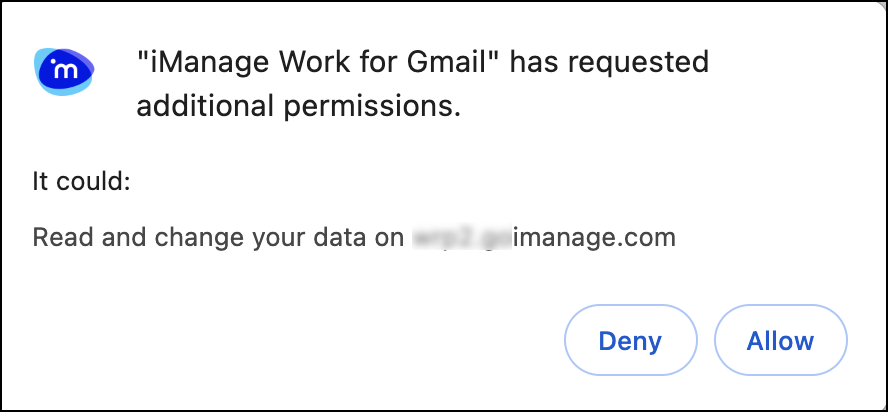
Trying to access Gmail after denying permission displays the following message:
Figure: Grant permission message in Gmail
Select Configure now to go to the iManage Work for Gmail Extensions Settings page and then grant the permission using the Click here to grant permission link.
Filing sent or received emails
You can file a sent or received email to an iManage Work destination folder. The email is stored in a format supported by the Gmail export.
- Open the email you want to file.
Alternatively, select one or more emails in your inbox. - On the toolbar, select File
to file the email.
- In the iManage Work dialog, select the required folder.
-
To file the email privately, select the Private check box, and then choose Select.
Your email is filed in iManage Work.
NOTE: When you file an email to iManage Work that contains a link to a Google Docs file, the file is automatically downloaded and saved as an attachment.
In your Inbox, the Filed to iManage label is displayed next to the recently filed email. Select the Filed to iManage label to view all the filed emails.
You can't remove the label from filed emails, but you can change the tag color and name to suit your preferences. To hide the label in your message list, select the icon next to the Filed to iManage folder and then select Hide.
Using Send and File
- In your composed email, select Send and File.
Figure: Send and File option. - In the iManage Work dialog, browse to a filing container and then select Send and file.
(Optional) To return to the email that you're composing, select Cancel.
Saving attachments
You can save one or more attachments to iManage Work. These saved files inherit metadata and security from the destination folder.
- Open an email with attachment(s).
- Hover the pointer over an attachment, select Save to iManage
, and then select one of the following options:
- New Version: To save the document as a new version, browse to and select a document and then choose Select. The attachment is saved as a new version of the selected document.
- New Document: Browse to the required folder and choose Select. The attachment is saved to iManage Work.
- To save multiple attachments, select Save all to iManage
in the right corner above the attachments. You can Save as new version or Save as new Document (refer to Step 2).
NOTES:
- The Select All option is selected by default. To save only a few attachments, deselect this option and then select the check boxes for the attachments you want to save.
- The Save as new version option works only if a single attachment is selected. Ensure you clear the check boxes for all but one attachment to save it as a new version.
- When you hover over a Google Drive attachment added using the Drive link option, the Save to iManage option mentioned in Step 2 isn’t available. You can save such attachments using the Save all to iManage option mentioned in Step 3.
Attaching iManage documents or links
When composing or replying to an email, select one or more documents and/or links from iManage Work and attach them to the email.
You can share the following from iManage Work:
- Documents (to someone inside or outside the organization)
- Document links (inside the organization)
- Both documents and links
Links get added wherever the pointer is and documents are added at the end of the email.
To attach a document and/or link:
- Open an email in compose or reply mode.
- On the toolbar at the bottom of the email, select
- In the iManage Work dialog, select one or more documents you want to share and then select Insert document or select one of the following from the drop-down list:
- Insert link
- Insert document and link
The selected item gets attached to the email.
NOTE: If you double-click a document, it’s inserted as a document by default.
Opening emails in Gmail
In iManage Work, while previewing an email filed from Gmail, you can use the Open option at the top left of the screen to directly open that email in Gmail.
Linking, editing, and unlinking labels
To link Gmail labels to iManage folders:
- Browse to the Gmail label that you'd like to link to an iManage folder.
- Select at least one email and then select Link label to iManage
- Browse to the folder that you'd like to link to the label.
- (Optional) Select Private. Any emails filed using the label will be filed as private.
- Choose Select.
The label is linked to the selected folder. Any emails filed under this label will be automatically filed to iManage Work.
NOTES:
- The linking, editing, and unlinking options for aren’t available/displayed until you select at least one email under a label.
- When using Gmail on a mobile application, any emails filed under the linked label get filed to iManage Work the next time the user signs in from a desktop using the iManage extension.
You can link each label to only one iManage Work folder at a time. To change the linked folder for all emails filed under the selected label:
- Browse to the Gmail label and select at least one email.
- Select Edit linked folder
.
- Select a new folder and then choose Select.
To unlink the label from iManage:
- Browse to the Gmail label and select at one email.
- Select Unlink
User Management
The User Management option is available from the iManage Work for Gmail Extension Settings page.
Only users with the Gmail Admin role can access User Management. Admin users can view purchased/available licenses, search users, and manage user roles.
From the User Management screen, an admin can:
- Promote User to Admin: Click the up arrow icon to give a user admin access.
- Remove Admin Role: Click the down arrow icon to change an admin back to a normal user.
- Delete User: Click the delete icon to remove a user from the extension.
If a user needs admin access, they should request an existing Gmail Admin to promote them from the User Management screen.
Comments
0 comments
Article is closed for comments.